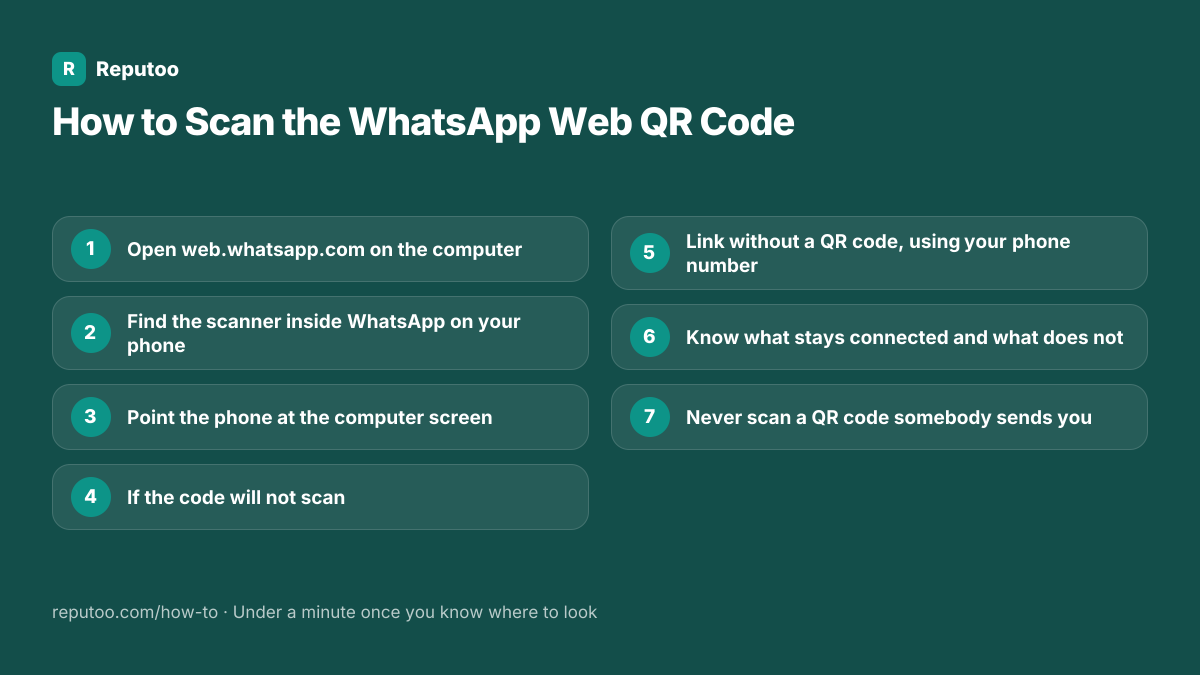
How to Scan the WhatsApp Web QR Code
WhatsApp on a computer works by linking your phone to it once, and the QR code is how that link is made. The code lives on the computer screen and the scanner lives inside the phone app — which is the opposite of what most people try first, and the reason this takes five minutes instead of thirty seconds. Here is exactly where each half is, on both Android and iPhone, and what the common failures actually mean.
Tools You'll Need
Step-by-Step Guide
Open web.whatsapp.com on the computer
Type web.whatsapp.com into any browser on the computer — Chrome, Edge, Safari or Firefox. A square QR code appears on the page. This is the only place the code comes from: it is generated fresh for that browser session, so a screenshot of somebody else’s code is worthless to you and yours is dangerous to share. If you would rather use an app than a browser, download WhatsApp Desktop instead; the linking step below is identical.
Find the scanner inside WhatsApp on your phone
The camera you need is not your phone’s normal camera app. On Android, open WhatsApp, tap the three dots in the top right, then Linked devices, then Link a device. On iPhone, open WhatsApp, tap Settings at the bottom right, then Linked devices, then Link a device. Either way your phone will ask for your fingerprint, face or PIN first — that check is what stops someone linking their computer to your account while your phone is unlocked on a table.
Point the phone at the computer screen
Hold the phone so the whole QR square fits inside the frame, about 15–30 cm from the monitor. It usually catches within a second or two. When it does, WhatsApp Web loads your chats on the computer and your phone shows the computer in its Linked devices list. Nothing is copied to the computer permanently — the link can be cut from the phone at any time.
If the code will not scan
Work through it in this order. The code expires after about a minute: if it has gone grey or shows a refresh arrow, click it for a new one. Turn the monitor brightness up — a dim or heavily anti-glare screen is the commonest cause. Clean the phone camera lens. Move the phone slightly further back rather than closer, because most cameras cannot focus at very short range. If the browser page itself looks broken, reload it. And check you are in Linked devices rather than the normal camera, which will read the code as a plain web link and do nothing useful.
Link without a QR code, using your phone number
If the camera is broken or you cannot see the screen clearly, there is an alternative. On the WhatsApp Web page choose "Link with phone number instead", enter the number in full international format, and the computer shows an eight-character code. Type that code into the same Linked devices screen on the phone. It ends up in the same place — same security check, same result.
Know what stays connected and what does not
Since multi-device, the linked computer keeps working even when the phone is switched off or out of signal, so you no longer have to keep the phone awake beside you. Two limits are worth knowing: the phone has to come online at least once every fourteen days or the link is dropped, and you can have a handful of devices linked at once, not an unlimited number. Log out of a device you no longer use from Linked devices on the phone — that list is worth checking occasionally.
Never scan a QR code somebody sends you
This is the one security point that matters here. Scanning a WhatsApp Web QR code links your account to whatever computer generated it, and whoever is sitting at that computer can then read your messages. WhatsApp generates these codes only at web.whatsapp.com and they expire in about a minute, so anyone sending you a screenshot of one — in a chat, by email, in a "verify your account" message — is trying to take over your account. Business contact QR codes are a different and harmless thing: they just open a chat.
Pro Tips
- The scanner is inside WhatsApp under Linked devices — your phone’s ordinary camera app cannot complete the link
- A greyed-out code has simply expired; click it to refresh rather than starting over
- Screen brightness fixes more failed scans than anything else
- On a shared or public computer, log out from the phone afterwards rather than just closing the tab
- Check the Linked devices list occasionally and remove anything you do not recognise
Expected Results
WhatsApp running on your computer with your full chat history, linked from your phone in under a minute — and the knowledge of which QR codes are safe to scan and which are an attack.
Ready to implement this with Reputoo?
Set up in minutes. No technical expertise required.
Every how-to guide
Frequently Asked Questions
How do I scan the WhatsApp Web QR code?
Open web.whatsapp.com on the computer, then on your phone open WhatsApp and go to Linked devices — three dots menu on Android, Settings on iPhone — and tap Link a device. Your phone asks for a fingerprint, face or PIN, then opens a scanner. Point that at the code on the computer screen. Your ordinary camera app will not work; the scanner has to be the one inside WhatsApp.
Why is my WhatsApp Web QR code not scanning?
Most often the code has expired — they last about a minute, so click it to refresh. After that: raise the screen brightness, clean the camera lens, and hold the phone slightly further back rather than closer, since phone cameras cannot focus very close. Also confirm you are in Linked devices and not the normal camera app, which reads the code as a plain link and does nothing.
Where is the WhatsApp QR code scanner on my phone?
Inside WhatsApp, not in your camera app. Android: three dots, top right, then Linked devices, then Link a device. iPhone: Settings at the bottom right, then Linked devices, then Link a device. Both ask for your fingerprint, face or PIN before the scanner opens.
Can I use WhatsApp Web without scanning a QR code?
Yes. On the WhatsApp Web page choose "Link with phone number instead", enter your number in full international format, and the page gives you an eight-character code to type into the same Linked devices screen on your phone. It is the same link by a different route — useful when a camera is broken or a screen is hard to see.
Does my phone need to stay online for WhatsApp Web?
Not continuously, since multi-device support. The linked computer keeps working with the phone switched off. The phone does need to connect at least once every fourteen days, though — leave it off longer and the linked devices are dropped and have to be linked again.
Is it safe to scan a WhatsApp QR code someone sends me?
No. Scanning a WhatsApp Web login code links your account to whoever generated it, giving them access to your messages. WhatsApp only ever shows these codes at web.whatsapp.com and they expire in about a minute, so a code arriving by message or email is an attempt to take your account. A business contact QR code — the kind on a menu or a poster — is different and harmless: it just opens a chat.
How do I log out of WhatsApp Web?
From the phone is the reliable way: WhatsApp, Linked devices, tap the computer in the list, then Log out. That works even when you no longer have access to the computer, which is what makes it the right habit after using a shared machine. Closing the browser tab alone leaves the device linked.