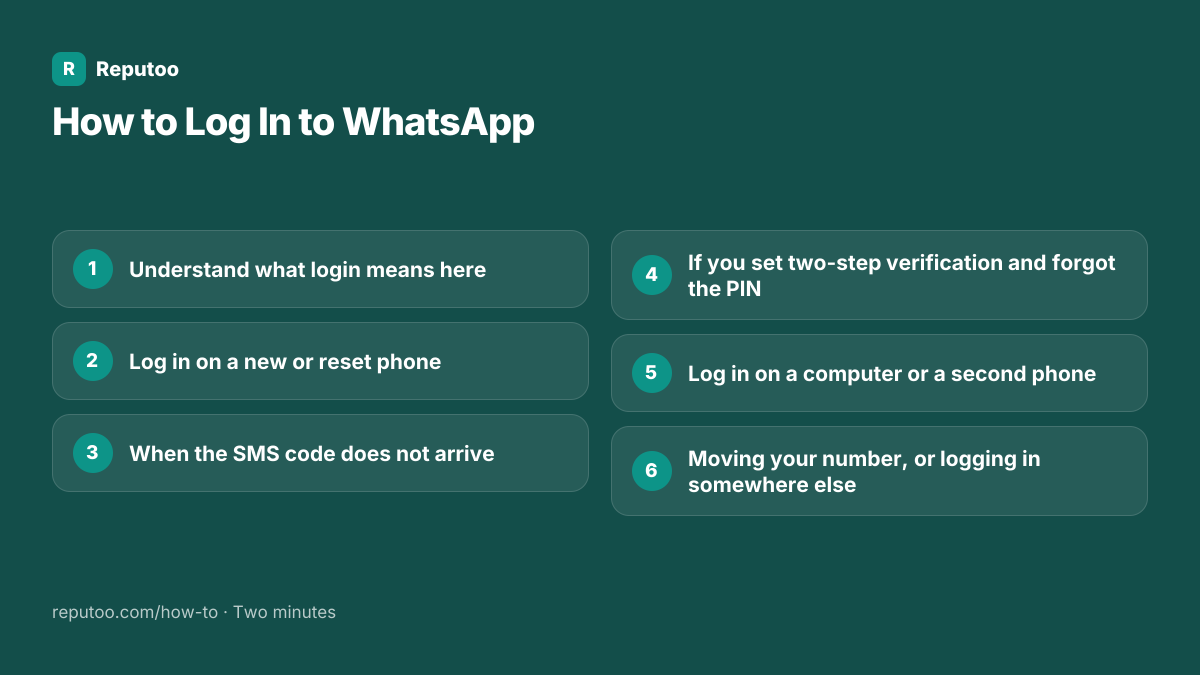
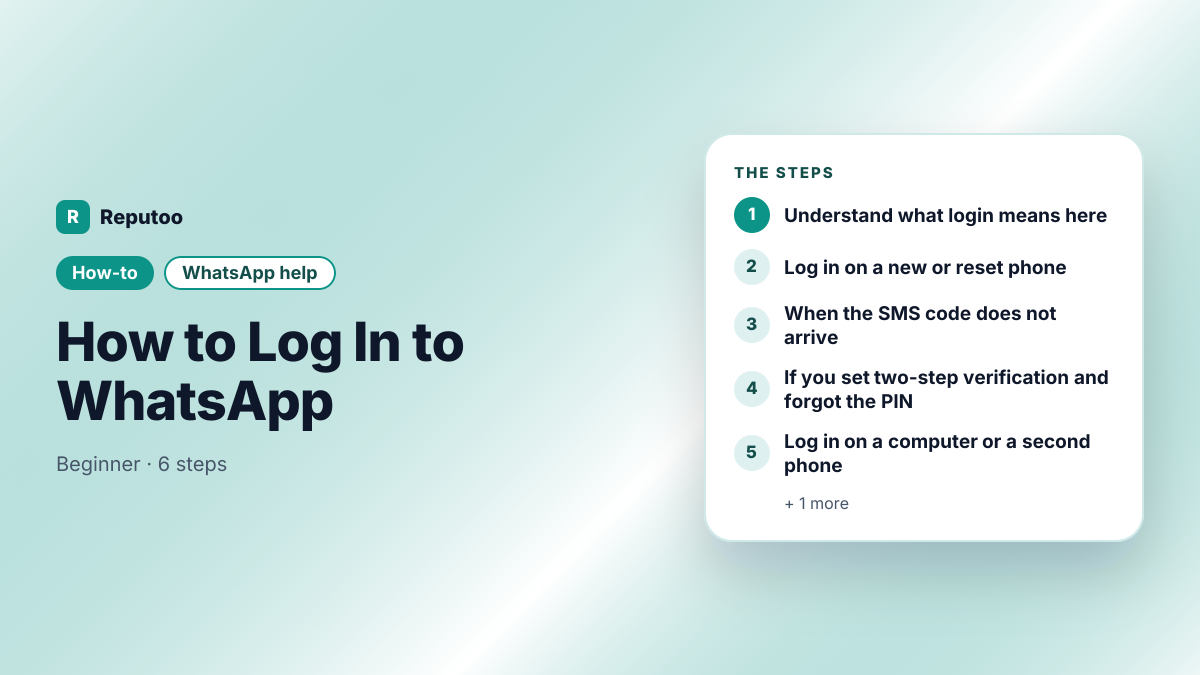
How to Log In to WhatsApp
WhatsApp has no username and no password, which is why searching for how to log in so often leads nowhere useful. Your account is your phone number, and proving it is yours means receiving a six-digit code on it. Everything else — a new phone, a computer, a second device — is a variation on that one idea. Here is each case, including what to do when the code does not arrive.
Tools You'll Need
Step-by-Step Guide
Understand what login means here
There is no password to remember and no email address on the account. WhatsApp identifies you by your phone number and proves it by sending a six-digit code to that number by SMS, or by calling it and reading the code aloud. That is the whole login. If a page or app asks you for a WhatsApp password, it is not WhatsApp.
Log in on a new or reset phone
Install WhatsApp, open it, accept the terms and enter your number in full international format — country code first, no leading zero on the local part. The code arrives by SMS in a few seconds and on Android is often filled in automatically. Enter it, and if you have two-step verification enabled you are asked for your six-digit PIN as well. Then accept the restore-from-backup prompt if you want your history — that offer appears only here, during setup.
When the SMS code does not arrive
Wait the full countdown before doing anything, because requesting again resets it and repeated requests can trigger a temporary block. Then check the obvious: the number typed correctly with the right country code, the phone able to receive an ordinary SMS from anyone, and no third-party blocker or DND setting filtering unknown senders. If the SMS genuinely will not come, use Call me — an automated call reads the code out, and it works when SMS delivery is the problem.
If you set two-step verification and forgot the PIN
The PIN is not recoverable. If you added an email address when enabling two-step verification, WhatsApp will send a reset link to it. If you did not, the account is locked for seven days from the last activity, after which you can register again without the PIN — losing any chat history not held in a backup. This is worth knowing before you enable the feature, and it is why adding the email address at the time matters.
Log in on a computer or a second phone
Not really a login at all — you link a device to the account that is already signed in on your phone. On a computer open web.whatsapp.com and scan the code from Linked devices on the phone, or use the link-with-phone-number option. On a second phone, install WhatsApp and choose the link-to-existing-account option rather than entering a number. Either way the phone stays the account and the other device is a view of it.
Moving your number, or logging in somewhere else
A number can be signed in on only one primary phone at a time. Verifying it on a new handset signs it out of the old one immediately — which is normal when you upgrade, and a warning sign when you did not do it. If you are moving to a new number rather than a new phone, use Change number in Settings before you stop using the old one, so your contacts and groups move with you.
Pro Tips
- There is no WhatsApp password — anything asking for one is a phishing attempt
- Wait the whole countdown before requesting a new code; repeated requests can get you temporarily blocked
- Use Call me when SMS will not arrive — it works over a voice line instead
- Add an email address when enabling two-step verification, or a forgotten PIN locks you out for seven days
- Never share the six-digit code with anyone. Every WhatsApp account takeover starts with someone asking for it
Expected Results
Signed in on the phone with your history restored, and a working understanding of why WhatsApp login has no password and what to do when the code will not arrive.
Ready to implement this with Reputoo?
Set up in minutes. No technical expertise required.
Every how-to guide
Frequently Asked Questions
How do I log in to WhatsApp?
Install the app, enter your phone number in full international format, and enter the six-digit code that arrives by SMS. There is no password and no email login — the phone number is the account. If you have two-step verification on, you are asked for your PIN as well.
What is the WhatsApp password?
There isn’t one. WhatsApp authenticates by sending a code to your phone number. Two-step verification adds a six-digit PIN of your own, but that is an extra check on top of the code rather than a password you log in with. Anything asking you for a WhatsApp password is phishing.
My WhatsApp verification code is not arriving. What now?
Wait the full countdown first — requesting again resets it and repeated attempts can cause a temporary block. Check the number and country code, and that the phone receives ordinary SMS. Then use Call me, which reads the code out over a voice call and works when SMS delivery is the problem.
Can I log in to WhatsApp without my phone?
Not for the first sign-in — the number has to receive the code on the device holding the SIM or its eSIM. Once signed in, linked devices such as a computer or a second phone keep working without the primary phone being switched on, as long as it comes online at least once every fourteen days.
I forgot my two-step verification PIN. How do I get in?
If you added an email address when you set it up, WhatsApp sends a reset link there. If you did not, the account is locked for seven days from its last activity, after which you can register again without the PIN — losing any history not in a backup. Adding the email at setup is what avoids this.
Someone is asking for my WhatsApp code. Should I send it?
No, under any circumstances. Every WhatsApp account takeover works this way — a message, often from a hacked friend, asking you to forward a code that was "sent by mistake". Sending it hands them your account. WhatsApp itself never asks for the code in a chat.