
Beginner Seconds· Updated September 2026

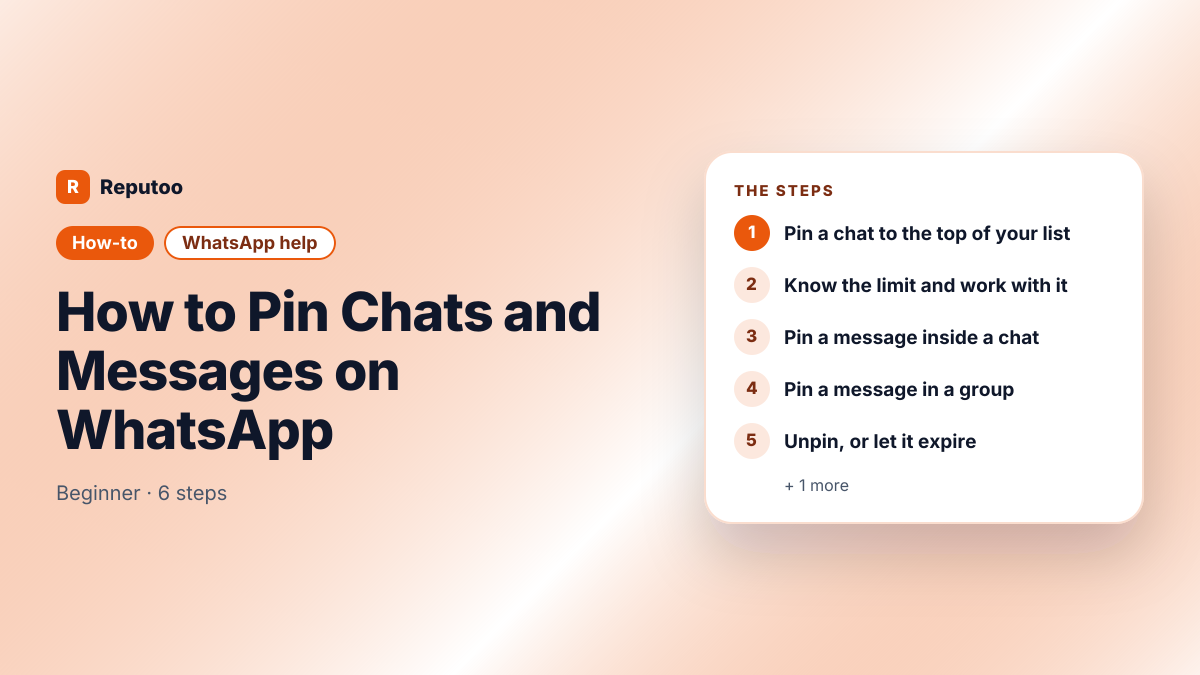
How to Pin Chats and Messages on WhatsApp

WhatsApp has two different pins and they solve different problems. Pinning a chat keeps a conversation at the top of your list so you stop scrolling for it. Pinning a message keeps one important message at the top of a conversation so everyone in it can see it. The steps are similar enough that people try one when they wanted the other — here is both, on Android and iPhone.
Tools You'll Need

WhatsApp on Android or iPhone

Step-by-Step Guide

1

Pin a chat to the top of your list

On Android, press and hold the chat in the list until it is selected, then tap the pin icon in the top bar. On iPhone, swipe right on the chat and tap Pin, or press and hold and choose Pin. The chat moves to the top and stays there whatever arrives afterwards, marked with a small pin icon. Unpin the same way — the icon becomes an unpin.

2

Know the limit and work with it

WhatsApp caps the number of chats you can pin — historically three, and raised since — and the app will tell you when you have reached it. The cap is deliberate: a pinned list of twenty is the same as no pinned list. Treat it as the handful of conversations you check daily rather than everything that matters, and unpin as things resolve.

3

Pin a message inside a chat

This is the other pin. Press and hold the message itself, then choose Pin from the menu — on some versions it is behind the three dots in that menu. WhatsApp asks how long the pin should last and offers a set of durations. The pinned message then shows in a bar at the top of that conversation for everyone in it, and tapping the bar jumps to the message.

4

Pin a message in a group

Same gesture, more useful. Press and hold the message and choose Pin. In a group this is the practical way to keep the meeting time, the address or the rules visible instead of repeating them every time someone scrolls past. Who is allowed to pin depends on the group’s settings — where a group is set so only admins can send or edit group info, pinning is limited to admins too.

5

Unpin, or let it expire

A pinned message expires on its own at the end of the duration you chose, which is the feature working as intended — a pinned message nobody removed is how groups end up showing last month’s meeting time. To remove one earlier, tap and hold the pinned message or the bar at the top and choose Unpin. Unpinning removes it for everyone in the chat, not just for you.

6

What pinning does not do

A pinned chat is not archived, muted or hidden — it still shows notifications normally and everyone in it sees nothing different. Pinning is entirely local to your phone: the other person has no idea you pinned them, and it does not sync to your other linked devices. Pinned messages are the opposite — those are visible to everyone in the conversation, which is the whole point.

Pro Tips

  • Pinning a chat is private to your phone; pinning a message is visible to everyone in the chat
  • Set a realistic duration on a pinned message — an expired pin is better than a stale one
  • In a group, pin the address or the timing rather than repeating it every week
  • Unpinning a message removes it for the whole group, not only for you
  • If pinning is greyed out in a group, the group is set so only admins can change group info

Expected Results

The conversations you actually use sitting at the top of the list, and the one message a group needs to see kept visible instead of buried.

Ready to implement this with Reputoo?

Set up in minutes. No technical expertise required.

Frequently Asked Questions

How do I pin a chat on WhatsApp?

On Android, press and hold the chat in the list and tap the pin icon at the top. On iPhone, swipe right on the chat and tap Pin, or press and hold and choose Pin. The chat stays at the top of your list until you unpin it.

How many chats can I pin on WhatsApp?

There is a cap and the app tells you when you hit it — it was three for a long time and has been raised since. The limit is deliberate, because a long pinned list defeats the purpose. Keep it to the conversations you genuinely check every day.

How do I pin a message in a WhatsApp group?

Press and hold the message and choose Pin — on some versions it is behind the three dots in that menu — then pick how long the pin should last. It appears in a bar at the top of the group for everyone. If the option is greyed out, the group is set so only admins can change group info.

Can the other person see that I pinned the chat?

No. Pinning a chat is local to your phone and completely invisible to the other person; it does not even sync to your own linked devices. Pinning a message is the opposite — that is visible to everyone in the conversation by design.

How do I unpin a message?

Tap and hold the pinned message, or the bar at the top of the chat, and choose Unpin. It disappears for everyone in the conversation. Pins also expire on their own at the end of the duration chosen when they were set.

How do I pin a chat on iPhone?

Swipe right on the chat in the list and tap Pin, or press and hold it and choose Pin from the menu. It is the same feature as on Android with a different gesture, and the same limit on how many chats can be pinned applies.