WhatsApp API

How to Send a WhatsApp Message via API: A Developer’s Guide to the Cloud API

Riya · ReputooUpdated 25 October 202610 min read
Send a WhatsApp message via the Cloud API
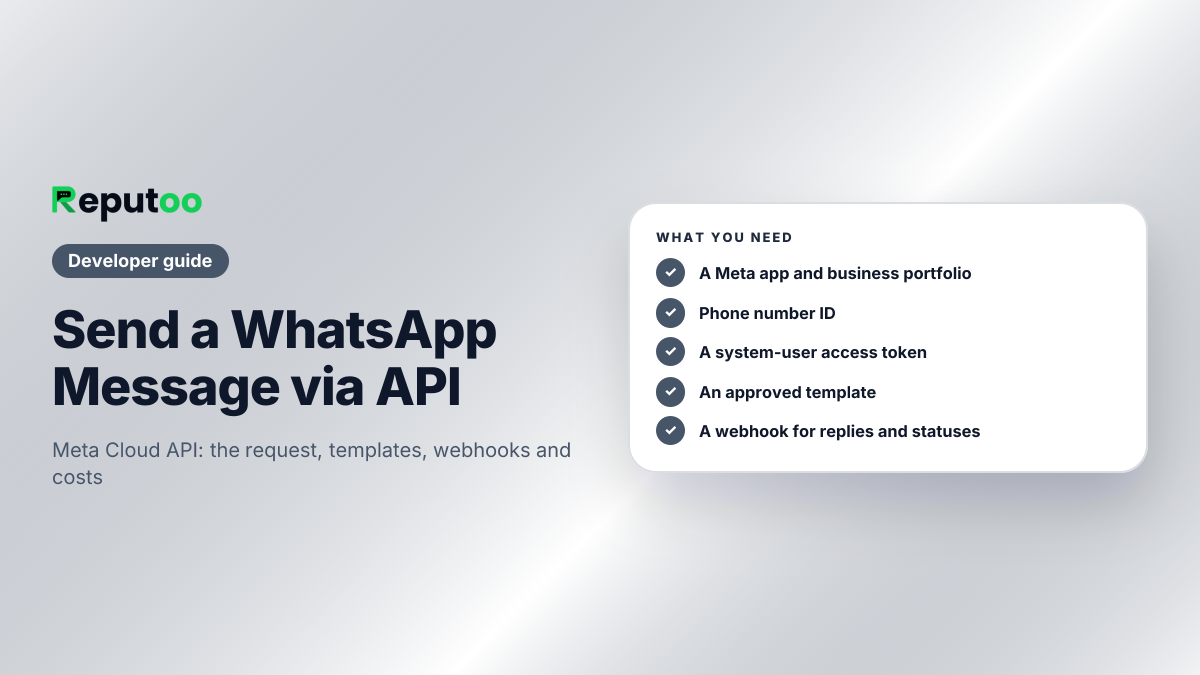
The five things to have before your first request.
On this page · 14 chapters
  1. 01 · What You Need Before You Start
  2. 02 · Get Your Phone Number ID and Access Token
  3. 03 · Send Your First Message: a Template
  4. 04 · Templates with Variables
  5. 05 · Free-Form Messages and the 24-Hour Window
  6. 06 · Images, Documents and Buttons
  7. 07 · Receive Replies and Delivery Statuses with Webhooks
  8. 08 · Common Errors and What They Mean
  9. 09 · A Production Checklist
  10. 10 · What Each Message Costs
  11. 11 · api.whatsapp.com/send and wa.me Links
  12. 12 · Build It Yourself or Use a Platform
  13. 13 · FAQs
  14. 14 · Final Thoughts

Sending a WhatsApp message from your own code — an order confirmation from your backend, an OTP from your login service, an alert from a monitoring script — takes one HTTPS request to Meta’s WhatsApp Cloud API. Getting to that first request takes a little setup, and a few rules decide whether the message is delivered or rejected.

This guide walks through the whole path: what you need before you start, how to get an access token, the exact request that sends a template message and a free-form text message, how replies and delivery receipts reach you through webhooks, the errors developers hit most often, and what each message costs.

One clarification first, because the two get confused in search results: <strong>api.whatsapp.com/send</strong> (and wa.me) is not an API for sending messages. It is a click-to-chat link that opens a chat with a number on the user’s own phone. We cover it at the end.

Chapter 01

What You Need Before You Start

  • A Meta developer account and an app of type Business, created at developers.facebook.com.
  • A Meta business portfolio (formerly Business Manager) that owns the app and your WhatsApp Business Account (WABA).
  • A phone number that can receive an SMS or voice call for verification and is not active on the WhatsApp or WhatsApp Business app. For testing, Meta gives you a test number and lets you message a few verified recipients.
  • A payment method on the WABA before sending beyond test limits, because Meta bills per delivered message.
  • An HTTPS endpoint you control, if you want to receive replies and delivery statuses (webhooks).

If you have not set up the business side yet, start with how to get the WhatsApp Business API and the overview in WhatsApp Business API: the complete guide.
Chapter 02

Get Your Phone Number ID and Access Token

In your app’s WhatsApp section, Meta shows two values you need for every request:

  • Phone number ID — the ID of the sending number (not the number itself).
  • WhatsApp Business Account ID — used for managing templates.

The page also offers a temporary access token, valid for about a day — fine for a first test, useless in production. For anything real, create a system user in your business portfolio, assign it the app and the WABA, and generate a permanent token with the whatsapp_business_messaging and whatsapp_business_management permissions. Store it like a password: in an environment variable or secret manager, never in front-end code or a repository.

Chapter 03

Send Your First Message: a Template

A message your business starts must be a template Meta has approved. Every new WABA comes with a sample template called hello_world, so the first request can use it:

curl -X POST "https://graph.facebook.com/{API-VERSION}/{PHONE-NUMBER-ID}/messages" \
  -H "Authorization: Bearer {ACCESS-TOKEN}" \
  -H "Content-Type: application/json" \
  -d '{
    "messaging_product": "whatsapp",
    "to": "919876543210",
    "type": "template",
    "template": { "name": "hello_world", "language": { "code": "en_US" } }
  }'

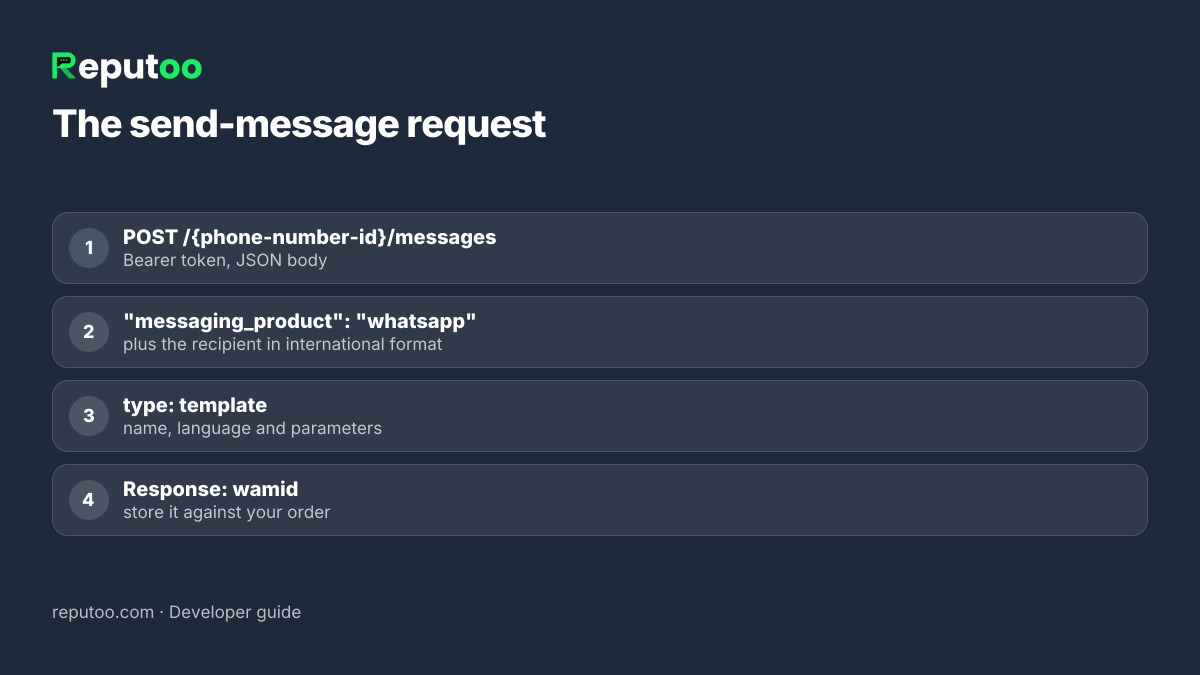
Replace {API-VERSION} with the current Graph API version shown in Meta’s docs, {PHONE-NUMBER-ID} with your phone number ID, and the to value with the recipient’s number in international format — country code first, no plus sign, no spaces, no leading zero. A successful response returns a message ID:

{
  "messaging_product": "whatsapp",
  "contacts": [{ "input": "919876543210", "wa_id": "919876543210" }],
  "messages": [{ "id": "wamid.HBgM..." }]
}

Keep that wamid: delivery and read statuses for this message will arrive on your webhook with the same ID.

WhatsApp Cloud API send message request and response
One HTTPS request sends the message.
Chapter 04

Templates with Variables

Real templates carry variables — the customer’s name, an order number, a date. Create the template in WhatsApp Manager (or via the management API), wait for approval, then fill the variables in the components array:

{
  "messaging_product": "whatsapp",
  "to": "919876543210",
  "type": "template",
  "template": {
    "name": "order_confirmation",
    "language": { "code": "en" },
    "components": [{
      "type": "body",
      "parameters": [
        { "type": "text", "text": "Priya" },
        { "type": "text", "text": "#10482" }
      ]
    }]
  }
}

Parameters fill the template’s {{1}}, {{2}} placeholders in order. Templates can also have a header (text, image, video or document) and buttons, each filled through its own component. The template’s category — marketing, utility or authentication — is set when you create it and decides the price. Check a template against Meta’s rules before submitting it with the WhatsApp template checker.

Chapter 05

Free-Form Messages and the 24-Hour Window

When a customer messages your number, a 24-hour customer-service window opens. Inside it you can reply with any message type, no template needed:

{
  "messaging_product": "whatsapp",
  "to": "919876543210",
  "type": "text",
  "text": { "body": "Thanks for your message! Your order #10482 ships today." }
}

The same window allows images, documents, locations and interactive messages with reply buttons or lists. Outside the window — or to someone who has never written to you — a free-form message is rejected and you must use a template. A common pattern is: template to start, free-form while the customer is chatting, template again if they go quiet for more than a day.

Chapter 06

Images, Documents and Buttons

Inside the 24-hour window you can send richer messages with the same endpoint. An image with a caption:

{
  "messaging_product": "whatsapp",
  "to": "919876543210",
  "type": "image",
  "image": { "link": "https://example.com/invoice-preview.png", "caption": "Your invoice for order #10482" }
}

An interactive message with up to three reply buttons, useful for confirmations:

{
  "messaging_product": "whatsapp",
  "to": "919876543210",
  "type": "interactive",
  "interactive": {
    "type": "button",
    "body": { "text": "Confirm your appointment on Saturday at 10:30?" },
    "action": { "buttons": [
      { "type": "reply", "reply": { "id": "confirm", "title": "Confirm" } },
      { "type": "reply", "reply": { "id": "reschedule", "title": "Reschedule" } }
    ] }
  }
}

When the customer taps a button, your webhook receives the button's id, so your code knows which choice they made without parsing free text. Documents (PDF invoices, tickets) use "type": "document" with a link and a filename.

Chapter 07

Receive Replies and Delivery Statuses with Webhooks

Sending is half the job. To see replies and know whether each message was delivered or read, subscribe your app to the WhatsApp Business Account’s messages webhook field and give Meta an HTTPS callback URL.

  1. Verification. Meta first sends a GET request with hub.mode, hub.verify_token and hub.challenge. If the token matches the one you configured, respond with the challenge value.
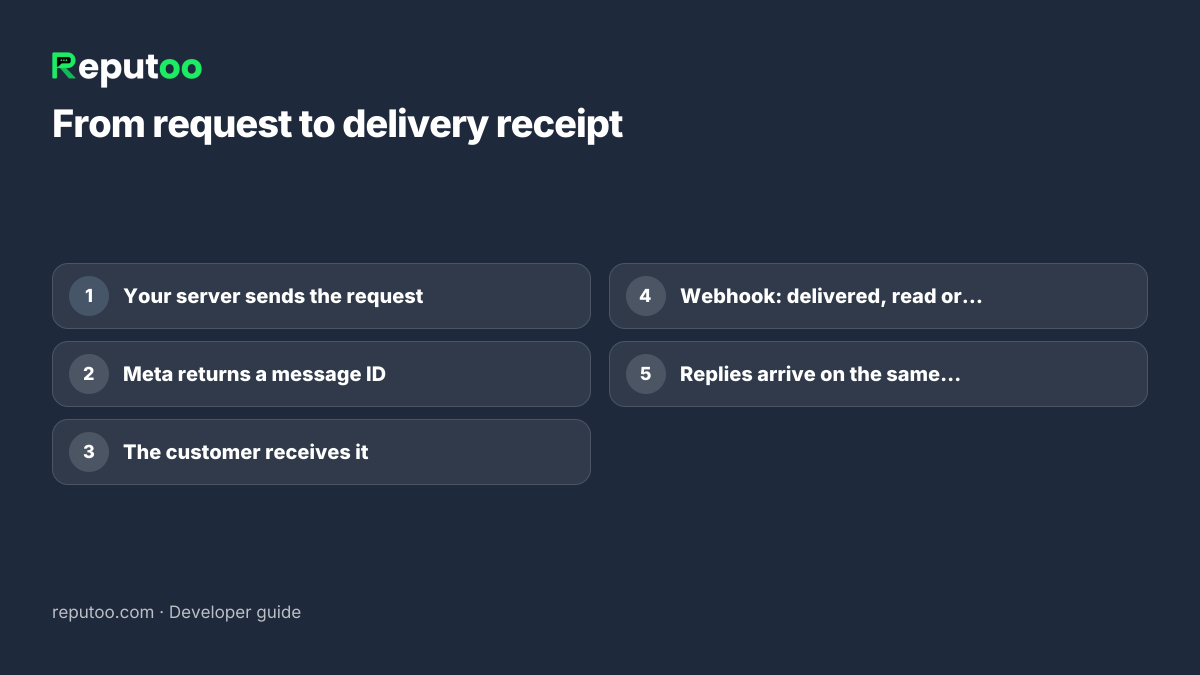
  2. Events. After that, Meta POSTs JSON for each incoming message (in value.messages) and each status change — sent, delivered, read, failed (in value.statuses), keyed by the wamid.
  3. Respond fast. Return HTTP 200 quickly and process the event in the background; slow or failing endpoints get retried.
  4. Check the signature. Verify the X-Hub-Signature-256 header with your app secret before trusting a payload.
WhatsApp API message flow with webhooks and delivery statuses
Statuses and replies come back on your webhook.
Chapter 08

Common Errors and What They Mean

  • Re-engagement / outside the window. You sent free-form text to someone whose last message is more than 24 hours old. Send a template instead.
  • Recipient not in allowed list. On a test number you can only message numbers you added as test recipients.
  • Template does not exist or is not approved. Check the exact name, the language code (en vs en_US) and the approval status.
  • Parameter count mismatch. The number of parameters must match the placeholders in the approved template.
  • Invalid or expired token. The temporary token expired; switch to a system-user token.
  • Rate or messaging limits. Your number has a daily cap on how many different customers you can start conversations with, which rises as your quality rating stays high.
  • Payment issue. No valid payment method on the WABA once you are past test usage.

Every error response includes a code and message — log them, and alert on the ones that mean a customer did not get something important.

Chapter 09

A Production Checklist

  • Queue your sends. Put outgoing messages on a queue and send at a steady rate, so a burst (a big sale, a batch of OTPs) does not hit rate limits.
  • Retry carefully. Retry on network errors and throttling with back-off, but not on validation errors — those will fail every time.
  • Store the wamid. Save each message ID against your order or user, so delivery statuses and replies can be matched to what you sent.
  • Honour opt-outs. When a customer asks to stop, record it and check the record before every marketing send.
  • Monitor quality. Watch your number's quality rating and template status in WhatsApp Manager; a paused template silently stops a flow.
  • Keep secrets out of code. Rotate tokens and keep them in a secret manager.
Chapter 10

What Each Message Costs

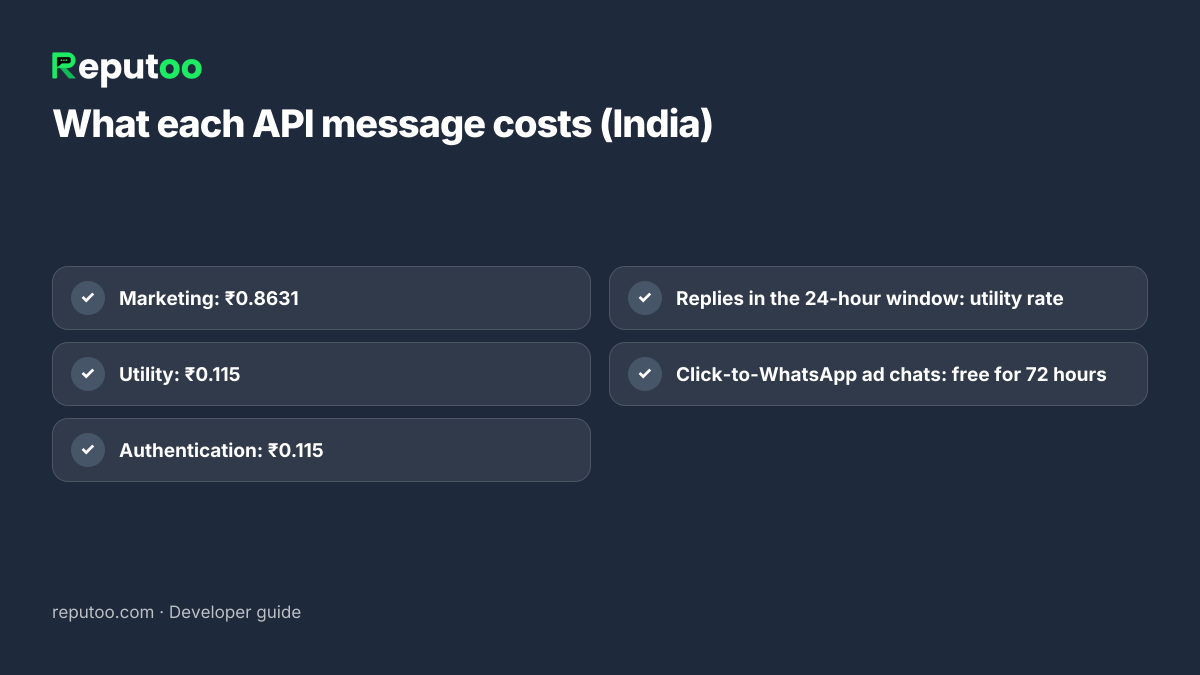
Meta charges per delivered template message, by category and by the recipient’s country. For Indian numbers on the October 1, 2026 rate card, before GST: marketing ₹0.8631, utility ₹0.115, authentication ₹0.115. Since 1 October 2026, free-form replies inside the 24-hour window are charged at the utility rate too; conversations a customer opens from a click-to-WhatsApp ad or Facebook Page button stay free for 72 hours.

So an order-confirmation service sending 10,000 utility messages a month to Indian customers costs about ₹1,150 in Meta charges. Model your own volumes with the WhatsApp API cost calculator.

WhatsApp API message cost per category in India
Meta's per-message prices in India (rate card October 1, 2026).
Chapter 12

Build It Yourself or Use a Platform

Calling the Cloud API directly is the right choice when WhatsApp is one channel inside a product you already build: transactional messages from your backend, OTPs, alerts. You control everything, and you only pay Meta’s message charges.

It becomes a bigger project once people outside engineering need WhatsApp too: marketing wants to send campaigns to segments, support needs a shared inbox, sales wants an AI agent that answers and books. Each of those is an interface someone has to build and maintain. That is what platforms such as Reputoo provide on top of the same Cloud API — campaigns, a team inbox, automations and AI agents — while store events from Shopify, WooCommerce or Zapier trigger messages without code.

Many teams do both: their backend sends transactional messages directly, and the marketing and support side runs on a platform. Our Cloud API explainer covers the trade-offs in more detail.

Chapter 13

FAQs

Can I send WhatsApp messages via API for free?

Access to the Cloud API is free and Meta provides a test number, but messages to real customers are charged per delivered message — in India ₹0.115 for a utility and ₹0.8631 for a marketing message on Meta’s October 1, 2026 rate card, before GST.

Do I need a template to send a WhatsApp message via API?

Yes, for any message your business starts. Free-form messages are allowed only within 24 hours of the customer’s last message to you.

What is the WhatsApp API endpoint to send a message?

A POST request to https://graph.facebook.com/{API-VERSION}/{PHONE-NUMBER-ID}/messages with a Bearer access token and a JSON body that includes "messaging_product": "whatsapp", the recipient and the message.

Is api.whatsapp.com/send an API?

No. It is a click-to-chat link that opens a chat on the user’s phone with optional pre-filled text. It does not send anything automatically.

Can I use my personal WhatsApp number with the API?

Only if you remove it from the WhatsApp app first; a number cannot be on the app and the API at the same time. Many businesses use a new number for the API.

How do I know if my WhatsApp API message was delivered?

Subscribe to webhooks. Meta sends status updates — sent, delivered, read or failed — to your callback URL, keyed by the message ID returned when you sent it.

Chapter 14

Final Thoughts

Sending a WhatsApp message via API comes down to one request — the hard parts are around it: an approved template, a permanent token, a webhook that records what happened, and respect for the 24-hour window. Get those right and WhatsApp becomes as dependable as email for your system’s messages, with far better read rates.

Start with the hello_world template and a test number, then move one real message — usually the order or booking confirmation — onto the API before anything else.

Written by Riya · Reputoo. Riya writes Reputoo’s guides on WhatsApp for business, AI agents and voice AI for Indian businesses.

← Back to all articles
Put it to work

Need Campaigns and an Inbox Too? Try Reputoo

1,000+ businesses onboarded · Member of NVIDIA Inception · Official WhatsApp Business API, no per-message markup.

Get the details on WhatsAppNo payment needed. We will message you on WhatsApp.
+91
By sending, you agree to be contacted on WhatsApp. Prefer to write first? Message us