
How-to

How to Create a WhatsApp Broadcast List (Android, iPhone and WhatsApp Business)

Riya · ReputooUpdated 25 October 202610 min read
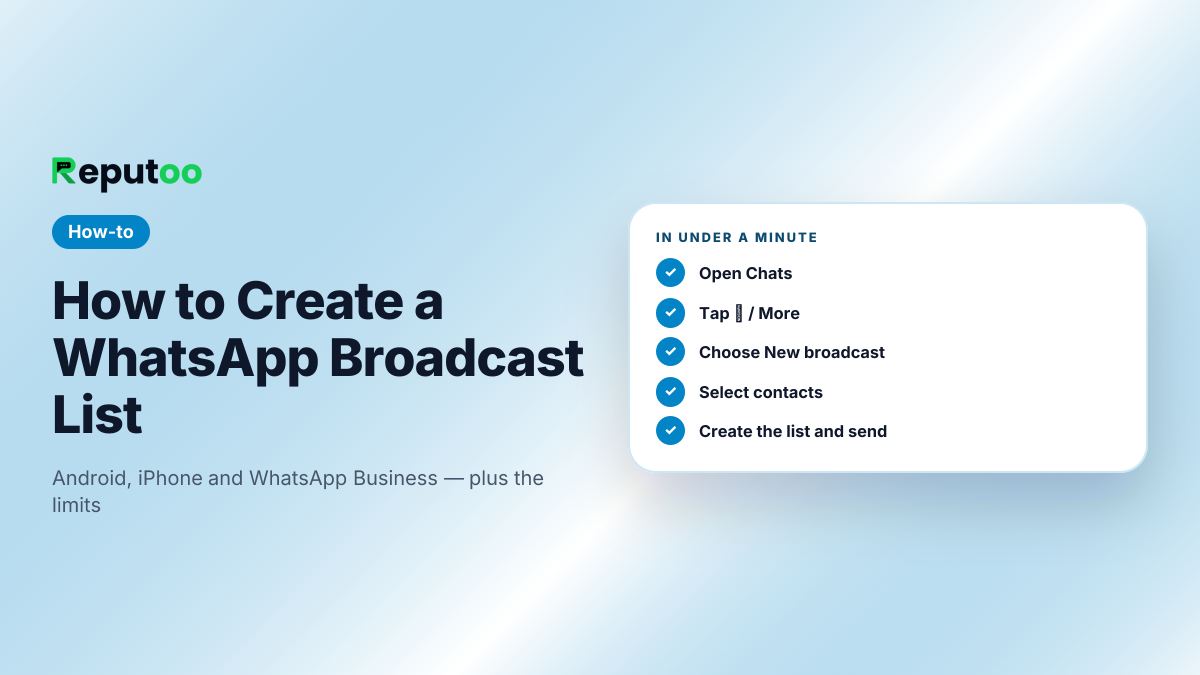
How to create a WhatsApp broadcast list
Five taps from Chats to your first broadcast.
On this page · 14 chapters
  1. 01 · What a WhatsApp Broadcast List Is
  2. 02 · How to Create a Broadcast List on Android
  3. 03 · How to Create a Broadcast List on iPhone
  4. 04 · Broadcast Lists on the WhatsApp Business App
  5. 05 · How to Edit, Find and Delete a Broadcast List
  6. 06 · Why Some Contacts Never Receive Your Broadcast
  7. 07 · Broadcast List vs Group vs Community
  8. 08 · Tips for Broadcast Messages People Read
  9. 09 · Building Your List the Right Way
  10. 10 · A Simple Weekly Routine for Small Businesses
  11. 11 · Troubleshooting Broadcast Lists
  12. 12 · When You Have Outgrown Broadcast Lists
  13. 13 · FAQs
  14. 14 · Final Thoughts

A WhatsApp broadcast list lets you send one message to many people at once, while each person receives it as a normal one-to-one chat from you. Nobody sees who else got it, and replies come back to you privately. For a small business with a few hundred regular customers, it is the simplest way to share an offer, a new menu or a holiday notice.

Broadcast lists also have limits that catch people out — the biggest being that only people who saved your number ever receive the message. This guide shows how to create a broadcast list on Android, iPhone and the WhatsApp Business app, how to edit and find it again, why some contacts never get your messages, and when you have outgrown it.

Chapter 01

What a WhatsApp Broadcast List Is

A broadcast list is a saved list of recipients. When you send a message to the list, WhatsApp delivers a separate copy to each person, so it lands in their individual chat with you — not in a group. Three things make it different from a group:

  • Privacy. Recipients cannot see each other or each other's replies.
  • Replies are one to one. If someone answers, it appears only in your chat with that person.
  • No group to leave. People do not know they are on a list; they simply receive messages from you.

You can create as many broadcast lists as you like — "regular customers", "wholesale buyers", "class of 2026" — and reuse each one whenever you send.
Chapter 02

How to Create a Broadcast List on Android

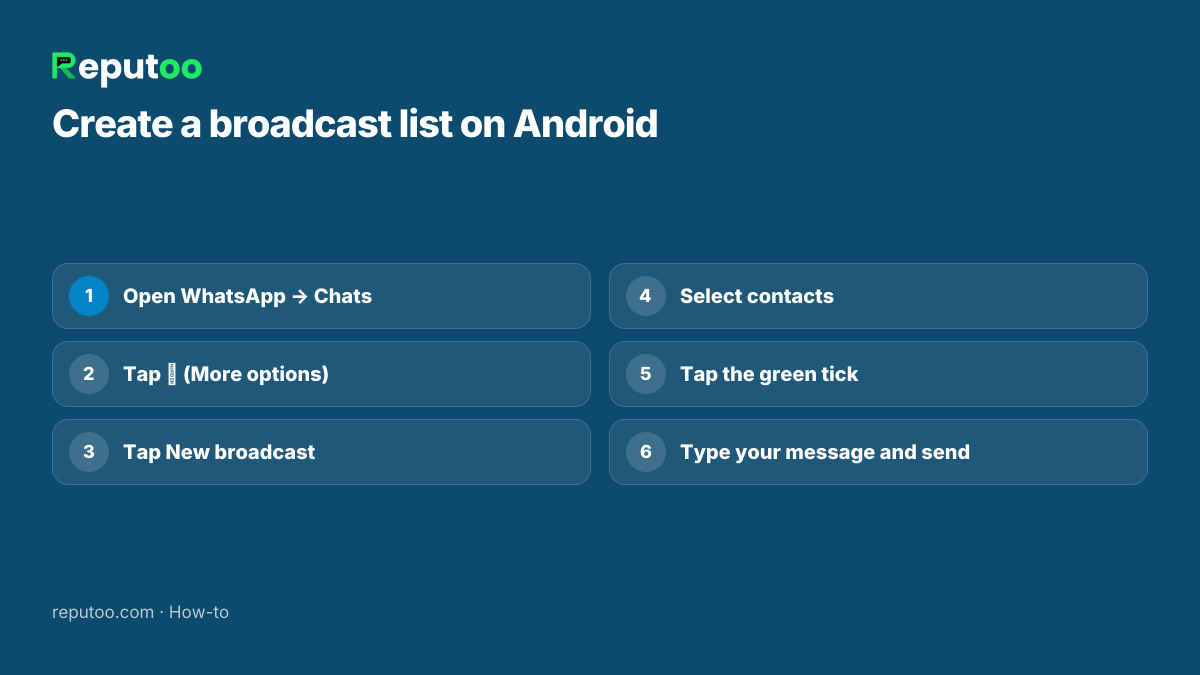
  1. Open WhatsApp and go to the Chats tab.
  2. Tap the ⋮ (More options) menu at the top right.
  3. Tap New broadcast.
  4. Select the contacts you want on the list, or search for them by name.
  5. Tap the green tick to create the list.
  6. Type your message and send. Each person receives it as a private chat from you.

The list now appears in your chats like a conversation, labelled with the number of recipients. Open it any time to send another message to the same people.

Steps to create a WhatsApp broadcast list on Android
The Android steps; iPhone menus vary by version.
Chapter 03

How to Create a Broadcast List on iPhone

  1. Open WhatsApp and go to Chats.
  2. Find the broadcast option. Depending on your WhatsApp version it is either a Broadcast Lists link at the top of Chats, or inside the ⋯ / More menu at the top of the screen.
  3. Tap New List (or New broadcast).
  4. Choose the contacts and tap Create.
  5. Write your message and send.

If you cannot find the option, update WhatsApp from the App Store — menu positions change between versions, but the feature is the same.

Chapter 04

Broadcast Lists on the WhatsApp Business App

The free WhatsApp Business app creates broadcast lists the same way as the personal app, and adds two things that make them more useful for a business:

  • Labels. Tag chats as "New customer", "Paid", "Pending order" and so on, then pick recipients by label when you build a list.
  • Quick replies. Save messages you send often and insert them with a shortcut.

The limits stay the same: 256 recipients per list, and only people who saved your number receive it. For a business, that second limit matters most — see below. For the differences between the app and the API, read WhatsApp vs WhatsApp Business.

Chapter 05

How to Edit, Find and Delete a Broadcast List

Find it. A list shows up in Chats like any conversation once you have sent a message to it. If you created it but never sent anything, open the broadcast option again (as in the steps above) — saved lists are listed there.

Edit it. Open the list, tap its name at the top for list info, then Edit recipients to add or remove people. You can also rename the list so you remember who is on it.

Delete it. In list info, scroll down and choose Delete broadcast list. Deleting the list does not delete the messages already in each person's chat.

Chapter 06

Why Some Contacts Never Receive Your Broadcast

This is the most common question about broadcast lists, and the answer is a deliberate WhatsApp rule: a broadcast message is delivered only to people who have saved your number in their phone's contacts. If a customer messaged you but never saved you, they will not receive your broadcast — and you will not be told.

On a typical customer list, many people never save a business's number. That is why a list of 200 can quietly reach far fewer. A few fixes help:

  • Ask customers to save your number when they first message you, and say why ("so you get our offers and updates").
  • Print the number with "Save us on WhatsApp" on bills, bags and your shop counter.
  • Check delivery: in the list chat, a message's info shows who it was delivered to and who read it.

Other reasons a message does not arrive: the person blocked you, their number is not on WhatsApp, or their phone has been offline.

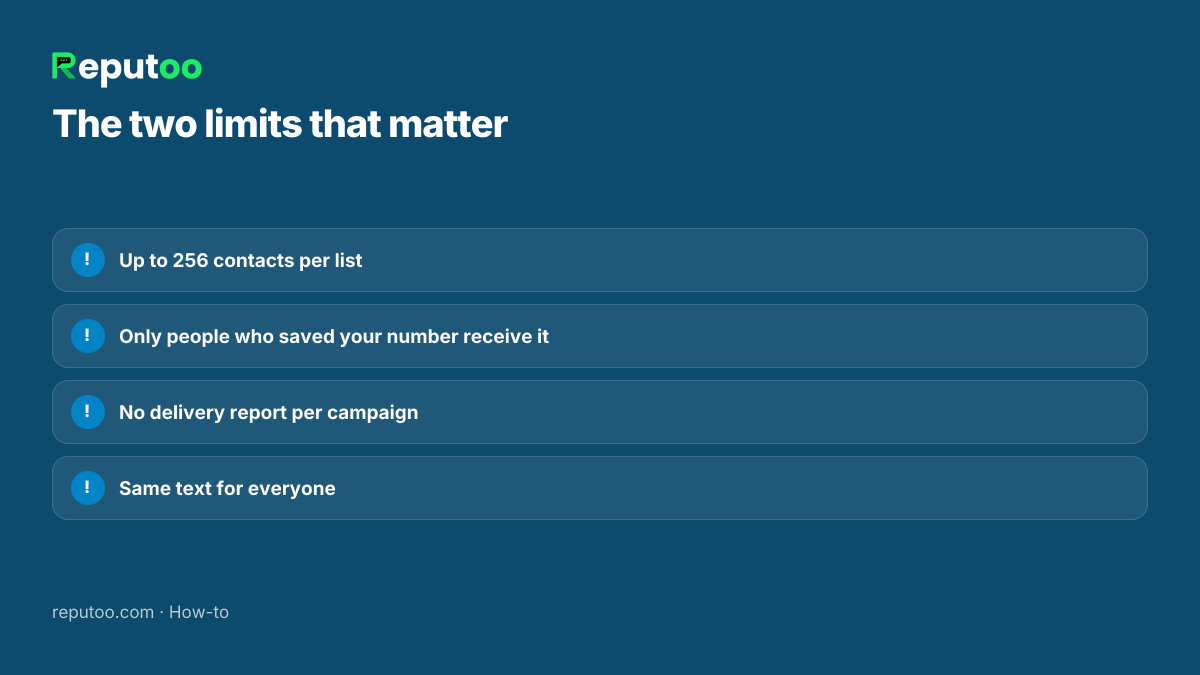
WhatsApp broadcast list limits: 256 contacts and saved numbers only
Why a list of 200 can quietly reach far fewer.
Chapter 07

Broadcast List vs Group vs Community

Broadcast listGroupCommunity
Recipients see each otherNoYesMembers of each group do
RepliesPrivate, to youTo the whole groupAnnouncements; replies in groups
Needs your number savedYesNoNo
Size256 per listGroup member limitSeveral groups under one umbrella
Best forOffers and updates to customersConversations among membersSchools, societies, large organisations

For customers, a broadcast list is almost always better than a group: nobody's number is exposed to strangers, and nobody gets flooded by other people's replies.

Chapter 08

Tips for Broadcast Messages People Read

  • Keep it short. Two to four lines; one offer or update.
  • Use their name where you can. In the app every recipient gets the same text, so a warm, general greeting works better than "Dear customer".
  • Give one next step. "Reply YES to book", "Order here", "Call us".
  • Do not overdo it. People who receive too many messages block the number — and a blocked number can be restricted by WhatsApp.
  • Only message people who expect it. Adding contacts who never asked to hear from you is how numbers get reported.

Need words to start from? See 30 WhatsApp broadcast message examples.

Chapter 09

Building Your List the Right Way

A broadcast list is only as good as the people on it. Add customers who know your business and want to hear from you — people who bought, booked or asked you a question — not numbers collected from a directory or a group. People who never agreed to your messages are the ones who block and report, and enough reports can get a number restricted.

Make joining easy: a line on your bill ("Save our number on WhatsApp for offers and updates"), a sign at the counter, or a simple question at the end of a chat ("Would you like our monthly offers here?"). Keep a note of who said yes. In India, the Digital Personal Data Protection Act, 2023 also expects you to use a customer's number only for the purpose they agreed to.

Split people into lists that match what they want: new arrivals for regular buyers, class timings for students, price lists for wholesale customers. A message that suits the whole list is read; one that suits a tenth of it is ignored by the rest.

Chapter 10

A Simple Weekly Routine for Small Businesses

Broadcast lists work best with a steady rhythm rather than bursts of messages. A routine many small businesses can manage:

  • Once a week: one useful message to your main list — new stock, this week's special, a slot that opened up.
  • Before festivals and sales: one announcement a few days ahead and one reminder on the day.
  • Same day: answer every reply personally. A broadcast that gets replies is a broadcast that sells.
  • Once a month: tidy the lists — add new customers who saved your number, remove anyone who asked to stop.

That is four or five messages a month per customer — enough to stay remembered, few enough not to be blocked.

Chapter 11

Troubleshooting Broadcast Lists

  • The "New broadcast" option is missing. Update WhatsApp; on iPhone, check both the top of Chats and the ⋯ / More menu.
  • Delivered to only a few people. The others have not saved your number. Ask them to, then send again.
  • Cannot add a contact. They must be saved in your own phone's contacts first.
  • Replies are missing. Replies arrive in each person's individual chat, not in the list itself.
  • Need more than 256 people. Split them across several lists, or move to the WhatsApp Business API for larger sends.
Chapter 12

When You Have Outgrown Broadcast Lists

Broadcast lists are perfect until one of these becomes true:

  • Your customer list is well past 256 people and you are juggling many lists.
  • A large share of customers never saved your number, so your offers do not reach them.
  • You need each message to carry the customer's own name, order or offer.
  • You want to know who received, read, clicked and replied.
  • Several people on your team need to answer the replies.

That is the point to move to the official WhatsApp Business API. Messages go to every customer who opted in, whether or not they saved your number; there is no 256 cap per send; each message can be personalised; and every delivery, read and click is reported. Meta charges per delivered message instead of the app being free — see how an official WhatsApp bulk message sender works and what it costs.

Do not be tempted by "unlimited free" bulk tools that work through WhatsApp Web: they break WhatsApp's terms and get numbers banned. Here is why.

Chapter 13

FAQs

How many contacts can I add to a WhatsApp broadcast list?

Up to 256 contacts per list. You can create several lists, but each send goes to one list at a time.

Why are my broadcast messages not delivered to some people?

WhatsApp delivers broadcast messages only to people who have saved your number in their contacts. People who have not saved it, have blocked you or are not on WhatsApp will not receive it.

Can people see who else is on my broadcast list?

No. Each person receives the message as a private chat from you and cannot see the other recipients or their replies.

Where is the broadcast list option on iPhone?

In Chats, either as a Broadcast Lists link at the top or inside the ⋯ / More menu, depending on your WhatsApp version. Update the app if you cannot find it.

Can I send a broadcast to more than 256 people?

Not in one list from the WhatsApp app. For larger lists, the WhatsApp Business API sends to every opted-in customer within your daily messaging limit, which grows as you use it.

Is a WhatsApp broadcast list free?

Yes, broadcast lists in the WhatsApp and WhatsApp Business apps are free. Messages sent through the WhatsApp Business API are charged per delivered message by Meta.

Can I create a broadcast list on WhatsApp Web or the desktop app?

Broadcast lists are created and managed in the WhatsApp app on your phone. Once you have sent to a list from the phone, follow the steps above there whenever you need to add people or send again.

Do people know they are on my broadcast list?

No. They simply receive a message from you in their usual chat. That is why it matters to add only people who want to hear from you — otherwise your message looks unexpected and is more likely to be blocked or reported.

Chapter 14

Final Thoughts

Creating a WhatsApp broadcast list takes under a minute, and for a small, loyal customer base it is all you need. Remember the two limits — 256 per list, and saved numbers only — and ask customers to save your number from day one.

When your list outgrows the app, or you need to know what each message achieved, move to an official bulk sender on the WhatsApp Business API and keep the same simple, personal messages.

Written by Riya · Reputoo. Riya writes Reputoo’s guides on WhatsApp for business, AI agents and voice AI for Indian businesses.

← Back to all articles
Put it to work

Outgrown Broadcast Lists? Try Reputoo

1,000+ businesses onboarded · Member of NVIDIA Inception · Official WhatsApp Business API, no per-message markup.

Get the details on WhatsAppNo payment needed. We will message you on WhatsApp.
+91
By sending, you agree to be contacted on WhatsApp. Prefer to write first? Message us